
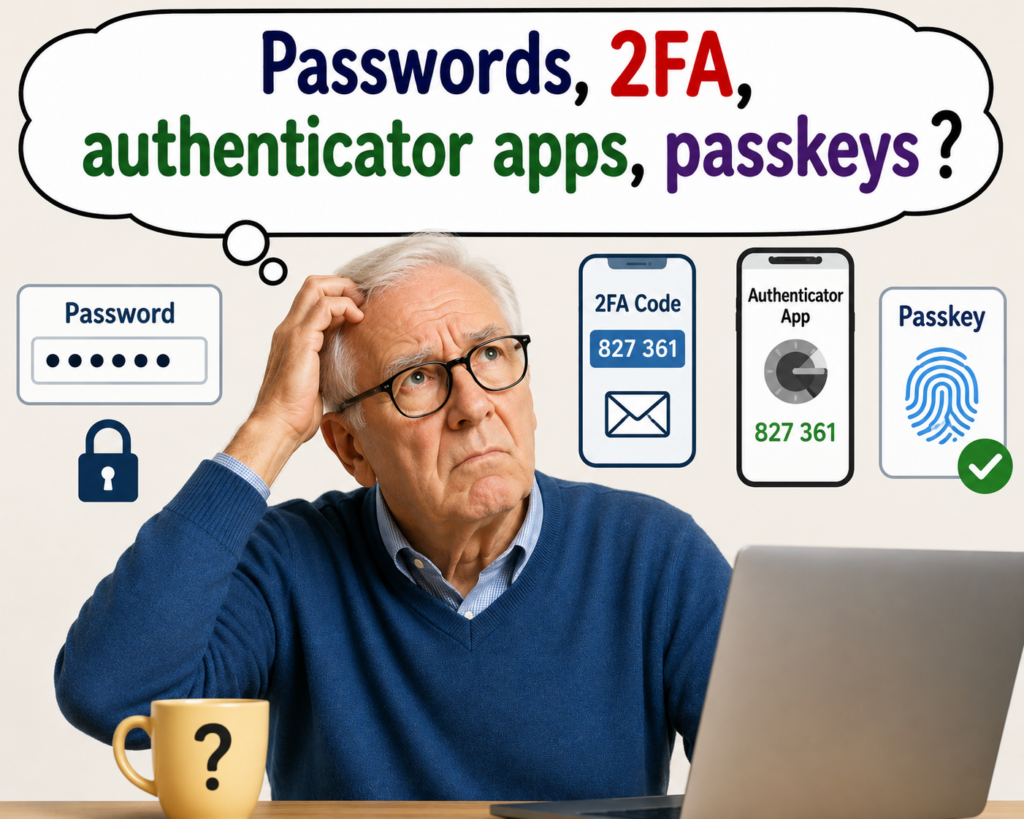
For many years, logging in to websites has relied on a combination of:
- username or email address, and
- password.
This system is still widely used today, however passwords have weaknesses:
- people often reuse the same password on multiple websites,
- weak passwords can be guessed,
- passwords can be stolen in data breaches or scams.
Because of the inherent weaknesses of using passwords alone, many organisations are now adding extra layers of security to log in.
For many people, these extra steps can seem inconvenient and confusing, so let’s explain what is going on and why …
2FA and Authenticator apps
Websites are increasingly using two-factor authentication (2FA) to improve security.
So after entering a password, the website will send a temporary security code by:
- text message (SMS), or
- email.
The user then enters this code to complete the login process.
But this approach still has some weaknesses:
- text messages can sometimes be intercepted or redirected,
- email accounts may themselves be compromised,
- codes can be delayed or fail to arrive,
- scammers may trick users into revealing codes.
Because of these problems, many organisations (such as the AHPRA website) are moving towards the use of authenticator apps instead, see AHPRA login video here:
https://www.ahpra.gov.au/Support/Ahpra-portal-help-centre/How-to-renew.aspx
Authenticator apps generate security codes directly on your phone without relying on text messages or email delivery. These codes change automatically every 30 seconds.
Common authenticator apps can be downloaded and installed on your phone from your favourite app store – iPhone app store, android Google Play Store, etc. Most websites do not require a specific authenticator app — any of the following will usually work:
- Google Authenticator
- Microsoft Authenticator
- Aegis Authenticator
- Proton Authenticator (a cousin to Proton Pass).
So to log into a website that requires 2FA via an authenticator app, you:
- enter your username (email) and password,
- open the authenticator app on your phone, then
- type the six-digit code shown in the phone app back into the browser screen.
Even if somebody learns your password, they still cannot log in without access to your phone and the current code.
Authenticator apps are increasingly used for:
- email accounts,
- banking,
- workplace systems,
- cloud services,
- social media accounts.
The emerging use of passkeys
A newer technology called passkeys is also beginning to appear on more websites and devices.
Passkeys are designed to eventually replace passwords, although many websites currently support both methods during the transition period.
Instead of typing a password, your device securely confirms your identity to login using:
- fingerprint,
- face recognition,
- device PIN,
- or another secure unlock method.
Passkeys are generally easier to use and more resistant to phishing scams than traditional passwords. However, choices are required when creating a passkey …
Should I create a synced or a non-synced passkey ?
When creating a passkey, you will be asked either to save to a password manager (with options of which password manager), or not to save to a password manager.
1) A non-synced passkey is not stored in a password manager that synchronises passkeys across devices.
Instead, a non-synced passkey can be saved either on the device itself, OR on a hardware security key (for example, a USB security key such as a YubiKey).
When saved directly on the device itself, the passkey is only available on that particular device. This option may suit someone who only ever uses one device, such as a phone or tablet.
Whereas if saved onto a USB hardware security key (such as a YubiKey), the passkey can be used on compatible devices that support that security key.
Hardware keys appeal to those who regularly use multiple shared computers, IT professionals and frequent travelers. More information on the Yubikey is here:
https://www.scorptec.com.au/product/flash-memory/security-keys/94853-5060408461426
2) On the other hand, a synced passkey is saved to a password manager, and is available on all devices using that password manager. Many of us use multiple devices (phone, tablet, laptop, desktop), and often multiple platforms (operating systems: macOS, Windows, Android, Linux). In these circumstances, saving a new passkey to your password manager is a very practical solution.
Password managers
In a previous article, the use of a password manager was mentioned as a valuable tool to make life easier and safer for managing your passwords.
macOS has a built-in password manager, now called Passwords, which stores passwords and passkeys, and synchronises these across all of your Apple devices (iPhones, iPads, Macs).
Microsoft‘s password manager is integrated into Microsoft Authenticator and Microsoft’s browser known as Edge (the successor to Internet Explorer), which can synchronise passwords and passkeys across Windows devices.
Google‘s Password Manager synchronises passwords and passkeys across the Android platform, and on any device/ platform which uses their Chrome browser.
Finally, there are 3rd party password managers such as Proton Pass and Bitwarden which can synchronise passwords and passkeys across all devices and all platforms (Apple, Microsoft/ Windows, Android, and Linux), whilst maintaining privacy from big tech companies.
Now that I have a passkey, do I delete my password ?
After setting up a passkey, expert advice differs regarding when and what to do with your original login password.
My preference is to keep the password temporarily until I have confirmed that the passkey is working reliably on all the devices I intend to use. Once I am confident that access can be recovered if a device is lost or replaced, I can then consider removing the password if the website allows it.
On the other hand, some websites, including the myGov site, recommend the deletion of your password straight away to improve your account security.
To learn more about passkeys, see the myGov information page and video here:
https://my.gov.au/en/about/help/mygov-website/sign-in-to-mygov/use-passkeys
A period of transition
At the moment, the internet is in transition:
- passwords are still widely used,
- 2FA and authenticator apps are becoming increasingly common, and
- passkeys are being introduced whilst the technology is fast evolving.
For most people today, adopting a password manager, and learning about 2FA and how to use an authenticator app is a practical first step towards stronger online security.
Understanding these processes helps reduce any login confusion.