
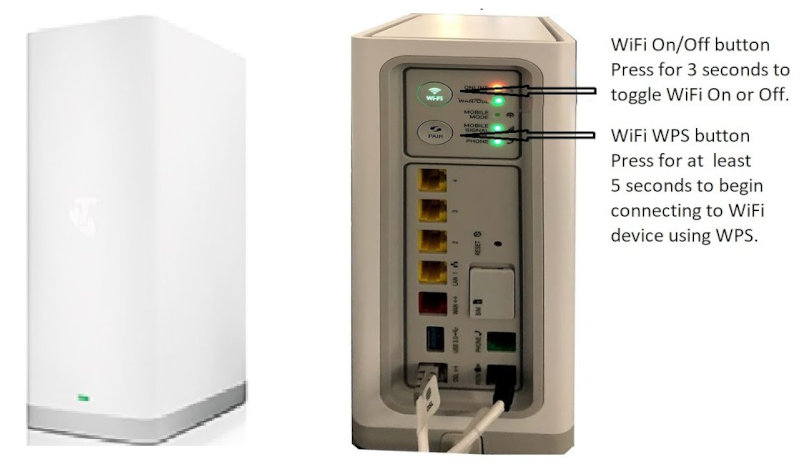
Most homes connect to the internet through a modem-router or Wi-Fi router supplied by the internet provider. This device is the “gateway” between your home devices and the internet, for which a few simple changes to the settings can greatly improve the security of your home network.
Accessing Your Modem-Router Settings
Most modem-routers have a built-in web interface that allows you to view and change settings.
To access it:
- Connect a computer, tablet, or phone to your home network (WiFi or wired).
- Open a web browser such as Chrome, Edge, Firefox, or Safari.
- To obtain the login screen, enter one of these addresses in the address bar:
192.168.0.1or192.168.1.1or10.0.0.1
- A login screen should appear.
If none of these addresses work:
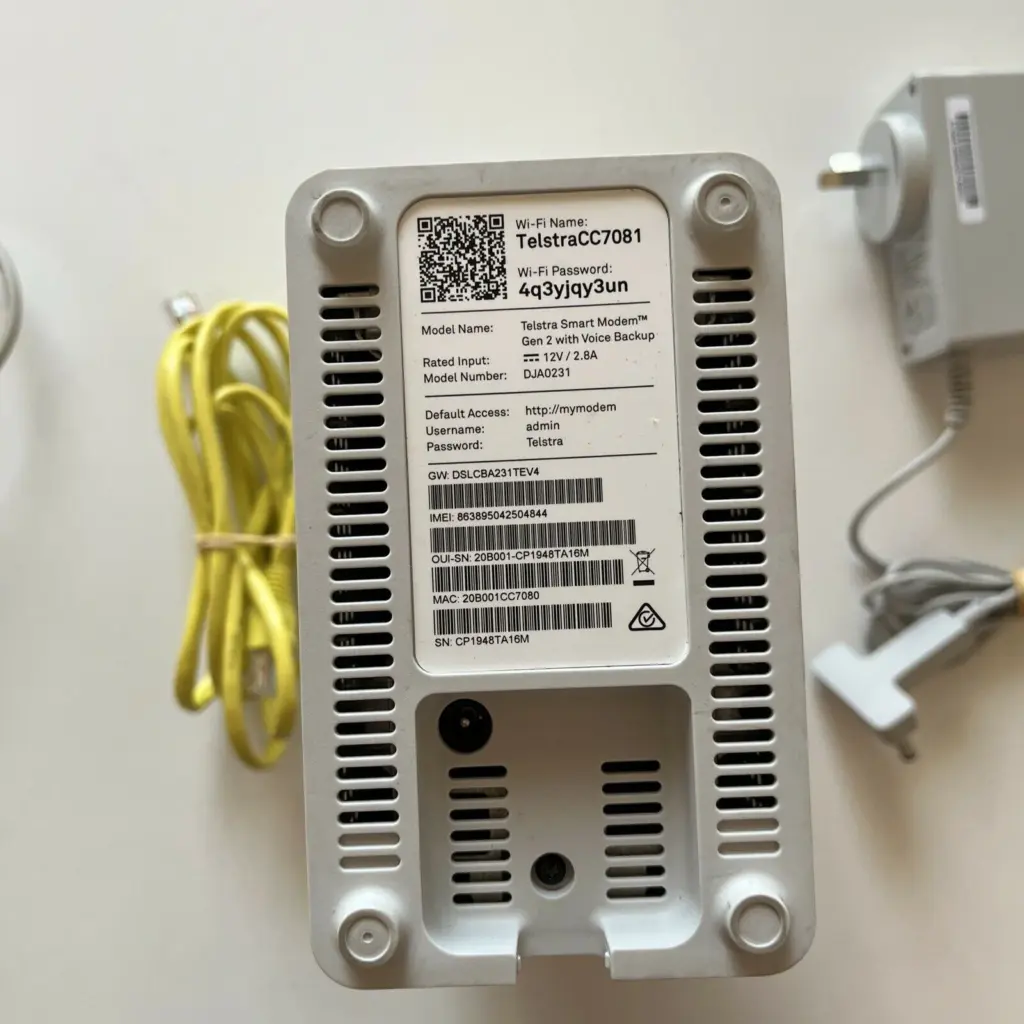
- look for a label underneath the modem-router (see photo below) which usually has the login screen address, username and password, or
- check the instruction booklet, or
- search online for the model number and default login address.
1. Change the Default Administrator Password
Once you have accessed your modem-router’s web interface, the first important security step is to change the administrator password.
Many modem-routers are shipped with simple default passwords such as:
- admin
- password
- 1234
These default passwords are widely known and can often be found online for specific models.
Instead, change to a password that:
- is long and difficult to guess,
- includes letters (upper and lower case), numbers, and symbols,
- is different from your Wi-Fi password.
Store the password somewhere safe, such as a password manager (eg. Proton Pass or Bitwarden), or keep a written record securely at home.
2. Change Wi-Fi Name (Network Name) and Password
Next, the Wi-Fi network name (SSID) must normally be broadcast so devices can find it easily. However, the default name can reveal details about your internet provider, the router manufacturer, or even the specific model. So rather than give attackers a head start, change this name to something unique and meaningless.
At the same time, change the Wi-Fi password from what is printed on the router to a different unique strong password (and different to the router administrator password).
Your newly changed Wi-Fi name and password must be kept safely in your password manager or written down and stored securely.
Most importantly, check that the security mode for the password is WPA2 (or WPA3 if available), and not outdated WEP security.
3. Disable Remote Management
Some modem-routers include a feature called “Remote Management”, “Remote Access”, or “Web Access from WAN”.
This feature allows the modem-router settings page to be accessed from outside your home internet connection – a feature most households rarely need.
For better security:
- disable remote management if it is enabled, and
- do not enable it unless you fully understand why it is needed.
Disabling remote access reduces the risk of attackers being able to log in to your modem-router from the internet.
4. Disable WPS (Wi-Fi Protected Setup)
Many modem-routers include a feature called WPS (Wi-Fi Protected Setup). This allows devices to connect to Wi-Fi by pressing a button on the modem-router instead of entering the Wi-Fi password.
Although convenient, WPS is a potential security weakness, so for better security:
- disable WPS if it is enabled, and
- use the normal Wi-Fi password method to connect devices instead.
Most households infrequently need to connect a new device, so disabling WPS is a sensible precaution.
5. Disable UPnP
Universal Plug and Play (UPnP) allows devices and applications to automatically configure some network settings, which can improve convenience but may reduce security.
If you do not need it, consider disabling UPnP. However, some online games, video calling apps, or smart-home devices may work less reliably without it.
6. Disable Unused Guest Networks
Some modem-routers provide a separate “guest” Wi-Fi network for visitors.
Most of us wouldn’t use this feature, so preferably disable it to reduce unnecessary network exposure.
7. Keep Firmware Updated
Manufacturers occasionally release firmware updates to fix bugs and security problems.
Some newer modem-routers update automatically. Others require manual updates through the settings interface.
If firmware updates become available:
- install them when practicable, and
- only download updates from the manufacturer’s official website.
Firmware updates are usually safe and beneficial, but avoid interrupting the update process once it has started.
Final Thoughts
You do not need advanced technical knowledge to significantly improve the security of your home internet connection.
A few simple checks — especially changing the default password, disabling remote management, turning off WPS, etc (done one at a time, rather than all at once) — can significantly reduce the risk of unauthorised access to your home network.
Once you are comfortable accessing your modem-router settings, you can also explore other useful features such as parental controls, and more technical network security options.