
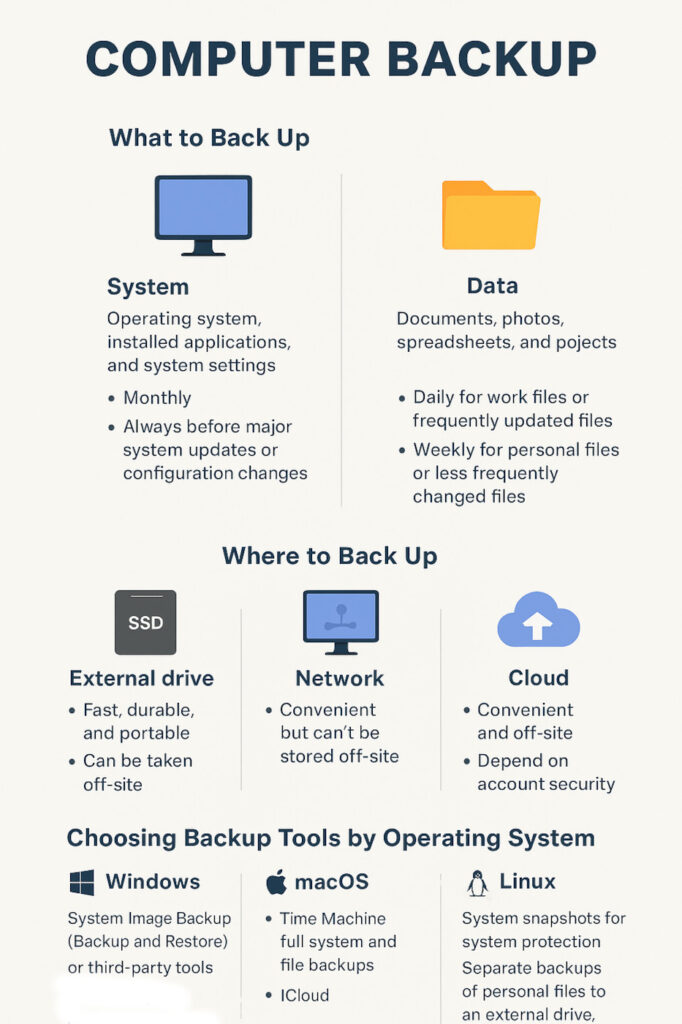
Regular backups are essential to protect your computer’s system and data in the event of hardware failure, accidental deletion, malware, or a failed system update.
What to Back Up: System vs Data
System Backups
System backups include your operating system, installed application programs and system settings. If your computer fails, a system backup lets you restore everything to a working state without laboriously reinstalling all software one piece at a time.
Recommended system backup frequency:
- About once a month, and
- Always before a major system update or configuration change.
Data Backups
Data backups include personal and work files – documents, photos, spreadsheets, and projects. These files change more frequently and are often the most valuable.
Recommended data backup frequency:
- Daily for work files or frequently updated files.
- Weekly for personal files or less frequently changed files.
Where to Back Up: External Drive vs Network vs Cloud
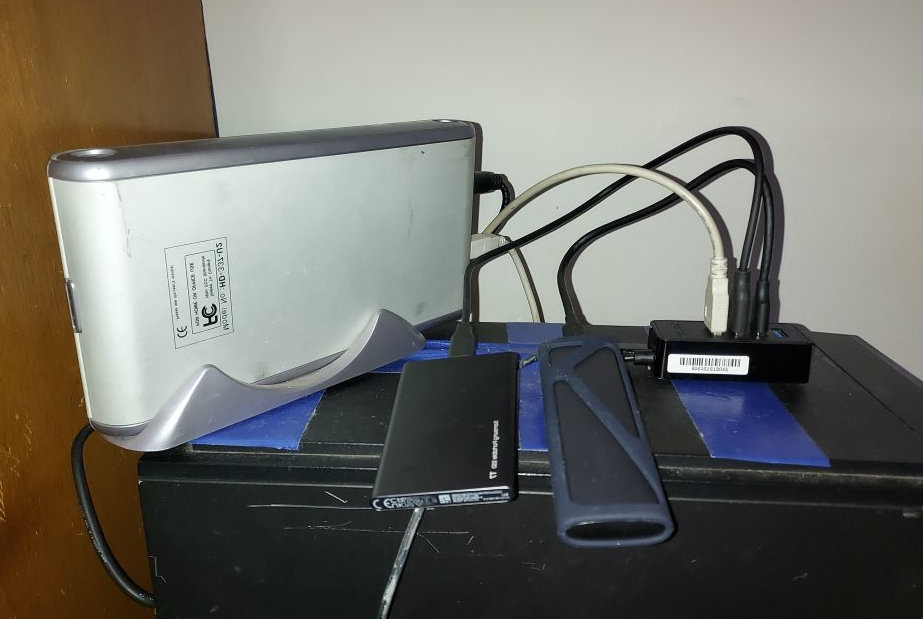
- External USB Drives (HDD, SSD, NVMe):
External USB drives are one of the simplest and most reliable backup options, and can be stored away from the computer at an off-site location to further protect against fire, theft or hardware failure.
Solid State Drives (SSDs) are now preferred to older hard disc drives (HDDs). They are fast, durable, and work very well with modern USB connections.
For advanced users, NVMe drives in external enclosures offer even greater speed and reliability, ideally suited to professional workloads.
- Network Drives:
If your computer is connected to a home or office network, backups can be stored on another computer or shared drive. This is convenient but does not protect against events that affect the entire location (such as fire or theft). - Cloud Services:
Services such as OneDrive, Google Drive, and iCloud are provided by Microsoft, Google, and Apple. They are easy to use and include a small amount of free storage. However, it’s important to understand their limitation …
Cloud services synchronise files rather than create a single independent timestamped backup. This means that if a file is overwritten, deleted or damaged on your computer, then this change will also be synchronised to the cloud.
For this reason, cloud storage should be seen as an extra layer of protection, not a replacement for local backups. Also, whilst cloud backups are generally secure, they do remain in the hands of big tech companies and depend on your account remaining safe – not compromised by hackers, or the loss of your account access.
Choosing Backup Tools by Operating System
Different computers have different available tools, but the overall principles are the same: system backups protect your operating system and applications, while data backups protect your personal/ work data files.
- Windows:
The built-in tool System Image Backup creates a full system backup (windows, installed programs, settings, user accounts and data) to an external or network drive. Other Control Panel utility programs can back up personal user data files (but not system files) to an external or network drive, with syncing of user data files to OneDrive as an optional supplement. - macOS:
Apple’s Time Machine provides full system and data backups to external or network drives. iCloud can be used as an additional option. - Linux:
Free tools such as Timeshift and rsync can back up system files and personal data.
Key point
Choose a backup method that works with your computer. Back up regularly, store backups safely, and occasionally check that files can be restored.
Takeaway
Regular backups are one of the simplest and most effective ways to protect your computer and important files. With up-to-date backups stored securely, you can recover quickly from problems — without losing valuable work or memories.