
Desktop and Laptop Accounts
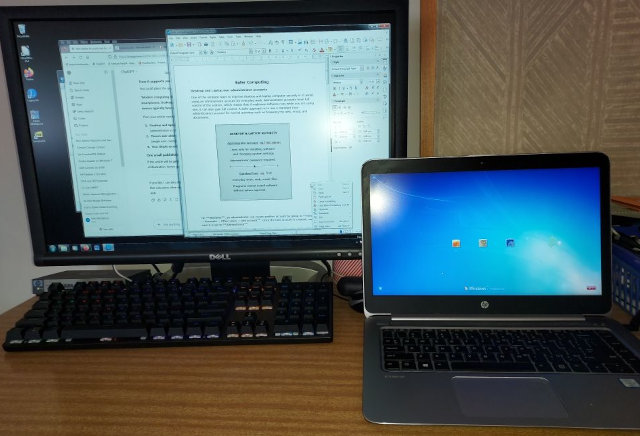
One of the simplest ways to improve desktop and laptop computer security is to avoid using an administrator account for everyday work.
Administrator accounts have full control of the system, which means that if malicious software is encountered whilst logged into an account with Administrator privileges, the malware can also gain full control.
A safer approach is to use a standard (non-administrator) account for normal activities such as browsing the web, email, and documents.
Windows: Windows 10/11 account management now goes via Settings → Accounts → (Family &) Other users → Add/ Create account. Whereas Windows 7 goes via Control Panel → Manage Accounts → Create a new account, as in the picture below:
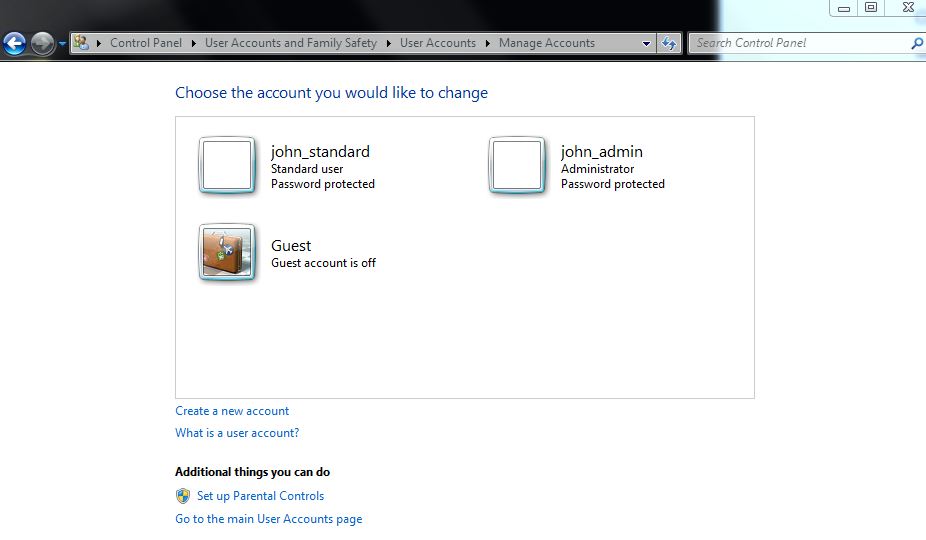
Click Add or Create a new account, then name the account (such as john_admin in picture), select Administrator as the account type, and click the Create Account button. Please protect every account with a password, and then follow the Recommended Approach below.
macOS: Open System Settings → Users & Groups, unlock the panel using the current administrator password, and click Add User, then choose Administrator as the account type.
Linux: A new user can be added through the Users section in system settings, and Administrator privileges assigned to the new user.
Recommended Approach: A useful approach is to create this new administrator account first. After creating it, then log out of the current account and log in to the new administrator account to confirm its existence. Once confirmed by successfully logging in, go again to the Manage Accounts settings, and change your usual everyday account from Administrator to Standard (non-administrator).
This method has an advantage: your normal desktop layout, files, and settings remain unchanged, except that the account you use every day now has fewer privileges. As a result, if malware is encountered, then this will be less likely to infiltrate your system.
Phone and Tablet Security
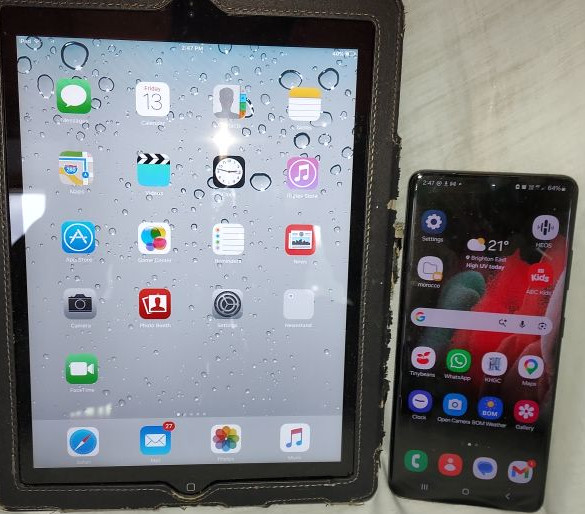
iPhones, iPads, Android phones and tablets are different from desktop and laptop computers by having only one main owner account with full control of the device.
Because of this, security relies heavily on careful app selection before additional apps are installed:
- Apps should be installed only from trusted stores such as the Apple App Store or Google Play, and it is wise to avoid downloading apps from unknown websites.
- Reading reviews and checking the reputation of the developer can help identify suspicious apps.
- Tools such as ChatGPT can also help as a quick research assistant before installing an unfamiliar app. For example, you might ask whether an app has a good reputation or whether there have been reports of malware. While this can help highlight possible warning signs, it should be treated as general guidance rather than a guarantee.
Key Message
Desktop and laptop computers improve security by separating everyday users from administrators, while phones and tablets rely on careful app selection and regular system updates to stay safe.